
Your VPN disconnects for 8 seconds while you are on public Wi-Fi. In those 8 seconds, your real IP address is visible to anyone watching the network. Your browser resends DNS queries through your ISP. If you are downloading a file, those packets go out unencrypted.

Most VPN users never know this happened. That is the problem a kill switch solves.
At Privaroo, we test VPN features independently, and the kill switch is the one that trips up most people: it exists in nearly every major app, it is usually disabled by default, and enabling it takes 30 seconds. This guide explains what it does, when it actually matters, and how to turn it on.
What Is a VPN Kill Switch?
A VPN kill switch is a feature that automatically blocks all internet traffic the moment your VPN connection drops. When the VPN tunnel goes down, the kill switch fires a firewall rule that cuts your connection entirely. No data leaves your device until the VPN reconnects.
The name is accurate: it kills the internet to protect your identity. You lose connectivity for a few seconds. Your real IP and DNS activity remain invisible.
A VPN kill switch is a security feature that blocks all internet traffic when the VPN connection drops unexpectedly. When a VPN disconnects, even briefly, the device reverts to its normal unprotected connection, exposing the user’s real IP address and sending DNS queries through the ISP. A kill switch prevents this by enforcing a firewall rule that cuts all internet access until the VPN tunnel is re-established. The feature operates silently in the background and is transparent during normal use. Most major VPN providers include a kill switch in their desktop apps, but the majority ship it disabled by default. Users must enable it manually in the app settings. Two variants exist: network-level kill switches that block all traffic on the device, and application-level kill switches that block only specific apps if the VPN drops.
Why VPN Connections Drop (and Why It Matters)
VPN connections are not permanent. They drop for reasons that have nothing to do with your provider’s quality:
- Network switching: moving from Wi-Fi to cellular, or switching between Wi-Fi networks, breaks the tunnel briefly
- Sleep and wake cycles: laptops and phones that go to sleep often drop the VPN connection during the transition
- Server congestion: overloaded VPN servers can time out and force a reconnection
- ISP throttling: some ISPs throttle UDP traffic, which can interrupt WireGuard or OpenVPN UDP connections
- Unstable connections: coffee shops, airports, and hotel Wi-Fi are prone to brief dropouts
Each dropout is short, typically 2 to 15 seconds. That window is enough to expose your real IP address to any monitoring system on the network.
Who this affects most: torrent users (monitoring nodes log your real IP when you appear unprotected), people in countries with active VPN restrictions, and anyone on public networks where deauthentication attacks are possible. On a home connection with no specific threat, a brief dropout is less critical, though still visible to your ISP.
See what a leak looks like in practice with our VPN leak test guide.
How a VPN Kill Switch Works
A kill switch monitors the VPN tunnel continuously. When the app detects the tunnel has dropped, it immediately pushes firewall rules to the operating system that block all outbound and inbound traffic. The block stays in place until the VPN tunnel is restored and confirmed active.
On Windows, this uses the Windows Filtering Platform (WFP). On Linux, it uses iptables or nftables. On macOS, it uses the pf (packet filter) firewall. On Android, the OS-level “Always-on VPN” setting achieves the same effect.
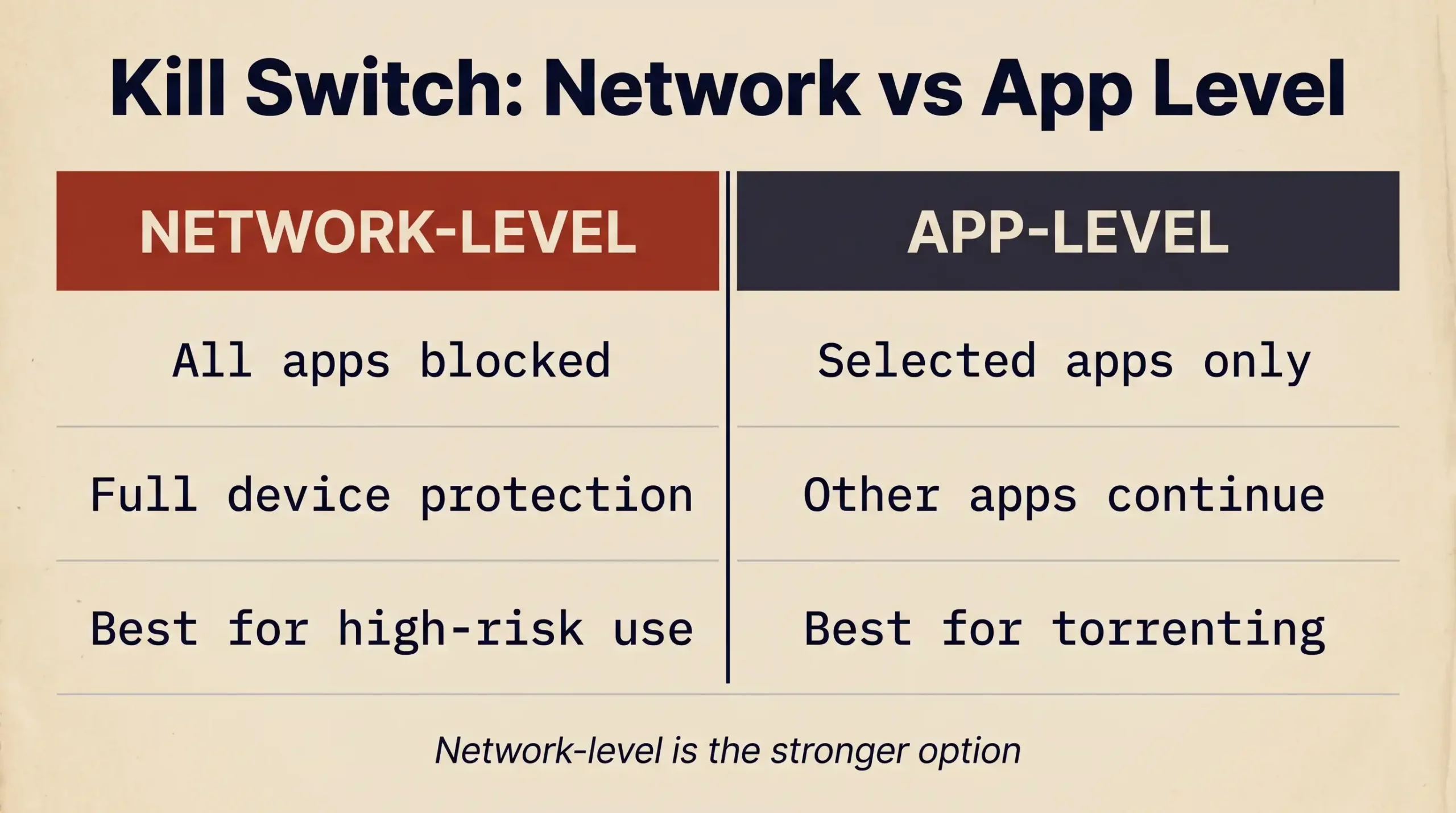
VPN kill switches operate at two levels: network-level and application-level. A network-level kill switch blocks all internet traffic on the device when the VPN drops, using OS-level firewall APIs such as Windows Filtering Platform, Linux iptables, or macOS pf. This is the most comprehensive protection because it covers every app on the device, including those that do not route through the VPN. An application-level kill switch is more granular: it blocks only specific apps (for example, a BitTorrent client) when the VPN connection drops, while allowing other apps to continue using the internet normally. Network-level kill switches are preferable for users who need complete protection. Application-level kill switches are useful for users who want to protect specific high-risk apps while keeping other connections live during a VPN dropout.
Network-Level vs Application-Level Kill Switch
Network-level cuts all internet access when the VPN drops. Every app on your device loses connectivity. This is the stronger option for anyone who needs their real IP to never be exposed, regardless of what is running.
Application-level cuts only the apps you specify. A torrent client stops. Your browser keeps working. This makes sense if you only need to protect specific activity and do not want a complete internet cutoff during a brief VPN dropout.
NordVPN, Mullvad, and ProtonVPN all offer network-level kill switches. NordVPN also provides an app-level option it calls “App Kill Switch,” which lets you specify which applications to kill if the VPN drops.
When You Actually Need a Kill Switch
Not every VPN user needs an active kill switch. The risk calculation depends on what you are protecting:
Enable it if you are:
- Torrenting (even private or legal downloads) - monitoring nodes log real IPs, and a brief dropout is enough to capture yours
- In a country that restricts or monitors VPN use - a momentary drop can reveal you were routing around restrictions
- Using public Wi-Fi regularly, especially at airports, hotels, or coffee shops where dropouts and deauthentication attacks are common
- A journalist, researcher, or activist whose real IP must not be linked to your online activity
Less critical if you are:
- Using a VPN mainly for streaming geo-restricted content at home - a brief dropout shows your ISP you use a VPN, nothing more
- On a stable home connection with no specific privacy threat
For any high-risk use case, the kill switch is non-negotiable. Enable it, test it, and leave it on. For our full recommendations on staying safe on public Wi-Fi, see that guide.
Kill Switch Support Across Major VPN Providers
The kill switch exists in every major VPN app we have tested. The critical detail is the default state. Most providers ship it off.
| Provider | Kill Switch | Network-Level | Default State |
|---|---|---|---|
| NordVPN | Yes | Yes | Off - must enable |
| Mullvad | Yes | Yes | On by default |
| ExpressVPN | Yes | Yes | Off - must enable |
| ProtonVPN | Yes | Yes | Off - must enable |
| Surfshark | Yes | Yes | Off - must enable |

Mullvad is the outlier: the kill switch is on by default, and disabling it requires an explicit choice. That reflects the provider’s privacy-first design philosophy. Our Mullvad review covers how this interacts with their always-on connection mode.
NordVPN has two separate settings: “Internet Kill Switch” (network-level) and “App Kill Switch” (application-level). They are independent and can be enabled together. Our NordVPN review includes testing notes on how both behave during forced disconnects.
How to Enable the Kill Switch
The path varies slightly by app, but the pattern is consistent across all major providers:
- Open your VPN app and go to Settings or Preferences
- Find the section labeled Connection, Advanced, or Security
- Look for Kill Switch, Network Lock, or Internet Kill Switch
- Toggle it on
- Reconnect to a VPN server
After enabling: test it manually. Connect to a VPN server, then disconnect the VPN (do not close the app, just disconnect). Your internet should stop immediately. If you can still load a webpage, the kill switch is not working or was not enabled correctly.
Provider-specific paths:
- NordVPN: Settings > Kill Switch > Internet Kill Switch
- Mullvad: Settings > VPN settings > Lockdown mode (on by default)
- ExpressVPN: Options > General > “Stop all internet traffic if the VPN disconnects”
- ProtonVPN: Settings > Connection > Kill Switch
After any settings change, run a VPN leak test with the VPN connected to confirm your DNS and real IP are not leaking during normal operation.
Kill Switch Limitations to Know
A kill switch solves one specific problem: it prevents your real IP from being exposed when the VPN drops. It does not solve everything.
A VPN kill switch protects against IP exposure during VPN dropouts, but it does not address other privacy risks. DNS leaks can occur while the VPN is actively connected if the VPN app is not routing DNS requests through the tunnel correctly. WebRTC leaks can expose a user’s real IP directly through the browser, regardless of whether the VPN is connected. IPv6 leaks can occur on networks that support IPv6 if the VPN only tunnels IPv4 traffic. None of these are fixed by a kill switch because they happen while the VPN is running, not during a dropout. A complete protection stack requires: a kill switch for dropout protection, DNS leak protection (route DNS through the VPN tunnel), WebRTC blocking (usually a browser extension or app-level setting), and IPv6 leak protection. Enabling a kill switch without addressing these other leak types provides incomplete protection.
What the kill switch does not fix:
- DNS leaks while the VPN is active
- WebRTC leaks in your browser
- IPv6 leaks if your VPN only tunnels IPv4
- Leaks caused by split tunneling misconfiguration
Mobile limitations: True network-level kill switches are harder to implement on iOS and older Android versions. On these platforms, the most reliable approach is to enable “Always-on VPN” in the OS-level network settings rather than relying only on the in-app toggle. This routes all traffic through the VPN at the OS level, which is more resistant to app crashes or unexpected resets.
The kill switch is not a substitute for choosing the right provider. If your VPN provider keeps logs, a kill switch does not help: your activity is still recorded even if your real IP is protected during dropouts. See our best VPN 2026 comparison for providers with verified no-logs policies.
Key Takeaways
- A VPN kill switch cuts all internet traffic the moment the VPN connection drops, preventing your real IP from being exposed during brief outages
- VPN connections drop regularly due to network switching, sleep cycles, server congestion, and unstable Wi-Fi
- Network-level kill switches block all device traffic; application-level kill switches block only specific apps
- Most major providers ship the kill switch disabled by default - you must enable it manually
- Mullvad is the main exception: the kill switch is on by default
- After enabling, test it: disconnect the VPN manually and confirm internet stops
- A kill switch only protects against dropout exposure, not DNS leaks, WebRTC leaks, or IPv6 leaks while connected
- For complete protection, combine a kill switch with a VPN leak test and proper DNS routing
Tested and written by Morgan, independent privacy researcher at Privaroo. Kill switch behavior verified across NordVPN, Mullvad, ExpressVPN, and ProtonVPN on Windows 11 and macOS Sequoia, June 2026. No VPN provider paid for or influenced this content.